Calendar View
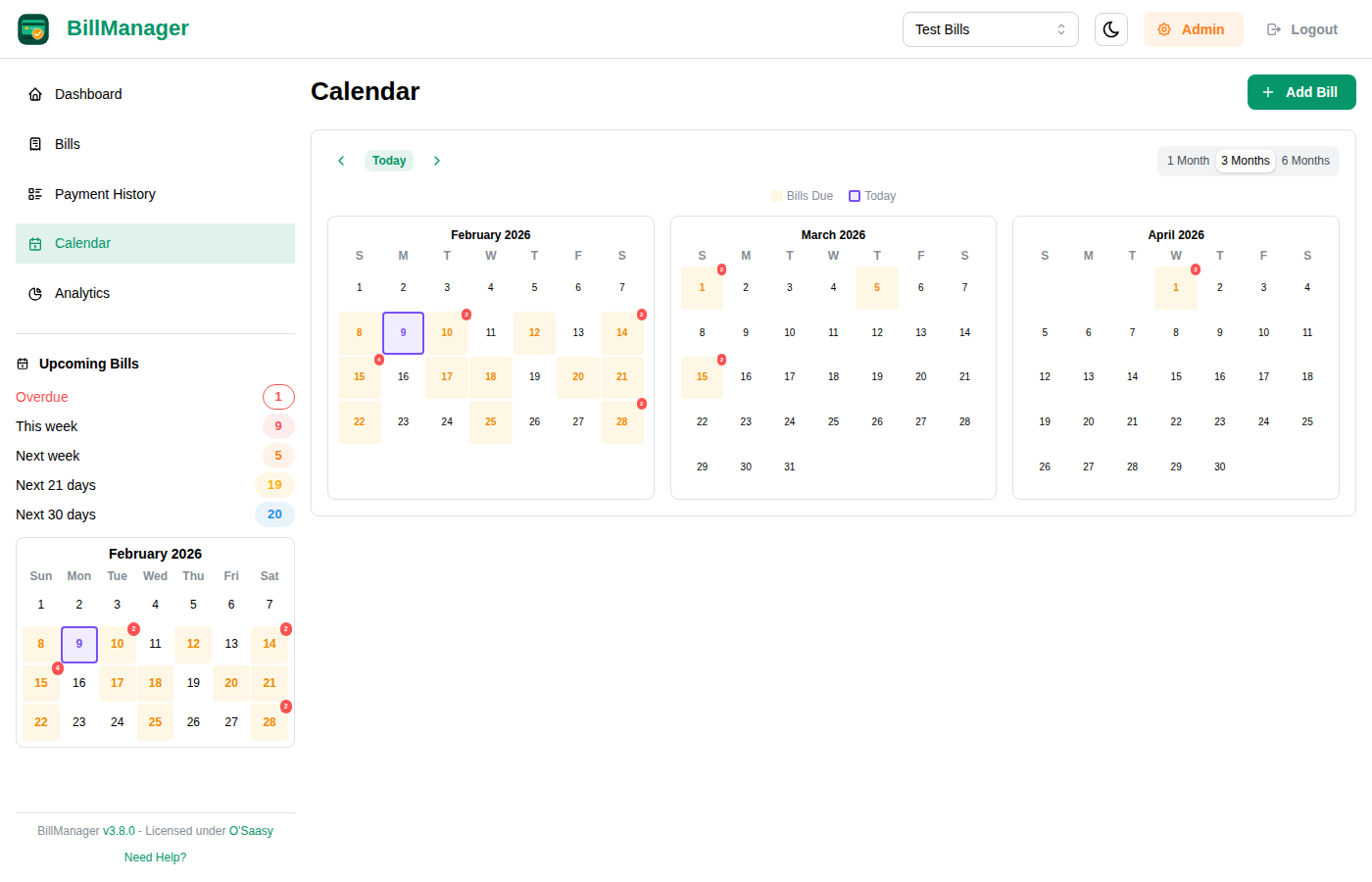
The Calendar page gives you a visual overview of your bill due dates across multiple months, making it easy to plan ahead and avoid missed payments.
Accessing the Calendar
Click Calendar in the sidebar navigation to open the Calendar page.
Multi-Month Display
Choose how many months to display at once:
| View | Best For |
|---|---|
| 1 Month | Detailed view of a single month |
| 3 Months | Planning the next quarter |
| 6 Months | Long-term financial overview |
Use the toggle buttons at the top of the page to switch between views.
Color-Coded Due Dates
Days with bills due are highlighted with color-coded indicators:
- Days with one bill show a single colored dot
- Days with multiple bills show stacked dots or a count
- The current day is highlighted for quick reference
This gives you an at-a-glance view of when payments are concentrated and when you have quieter periods.
Viewing Bill Details
Click any day on the calendar to open a detail modal showing:
- All bills due on that date
- Bill name, amount, and account
- Current payment status
This lets you quickly check what is due on a specific date without leaving the calendar view.
Navigation
- Arrow buttons - Move forward or backward by the number of months currently displayed
- Today button - Jump back to the current month at any time
Tips
- Use the 3-month view to plan for upcoming expenses and make sure you have funds ready
- Check for clustering - If many bills fall on the same day, consider adjusting due dates to spread payments out
- Combine with Dashboard - Use the Calendar for planning and the Dashboard for day-to-day tracking